
Short answer
Faded laser prints usually come from a toner saving mode, a cartridge that is running low, or the wrong paper type setting, so check those first. If the whole page is still light, the drum may be near the end of its life. On an inkjet, faded print usually means clogged nozzles: run a nozzle check, then a cleaning cycle.
Faint, washed out pages are a common printer complaint, and the fix often costs nothing. Work through these checks in order.
Laser printers: six checks in order
- Turn off toner save. Brother calls it Toner Save and HP calls it EconoMode. Both use less toner per page, and both make pages lighter. You switch it off in the printer menu or in the printer driver; on HP it is on the Paper/Quality tab. HP doesn’t recommend leaving EconoMode on all the time.
- Check the toner level. On HP printers, black that fades from the top of the page to the bottom means the cartridge is nearly empty. On Brother printers, a Toner Low or Replace Toner message tells you the same. Read our guide to Brother toner messages.
- Match the paper type. Set the paper type to the paper in the tray, in the driver as well as on the printer, because the driver setting takes priority.
- Check the print density. Many printers let you make prints darker. On Canon models, for example, you find Printer Density under Adjustment/Maintenance, then Adjust Image Quality.
- Look at the room and the paper. High humidity and damp paper can cause faint or hollow print. Keep paper sealed in its wrapper until you load it.
- Check the drum. On Brother printers with a separate drum, clean the corona wire with the green tab, then replace the drum if pages stay light. On most HP LaserJets the drum is inside the toner cartridge, so a new cartridge replaces it too. See drum vs toner.
On HP LaserJets, a cleaning page can help as well: on many models it is under Setup, then Printer Maintenance, then Print Quality Tools.
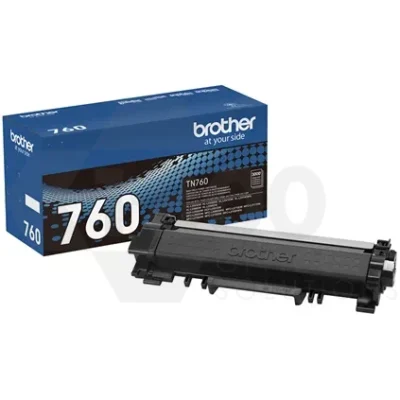
Replacement toner for Brother and HP, genuine and compatible
-
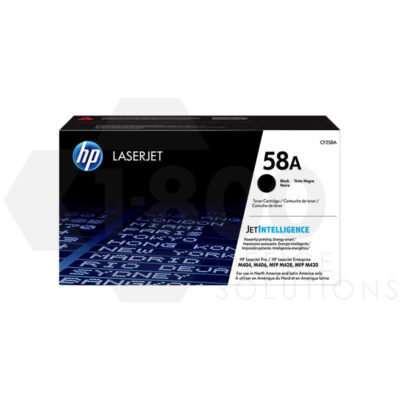
HP 58A Black Toner Cartridge
$149.99
Only part of the page is faded
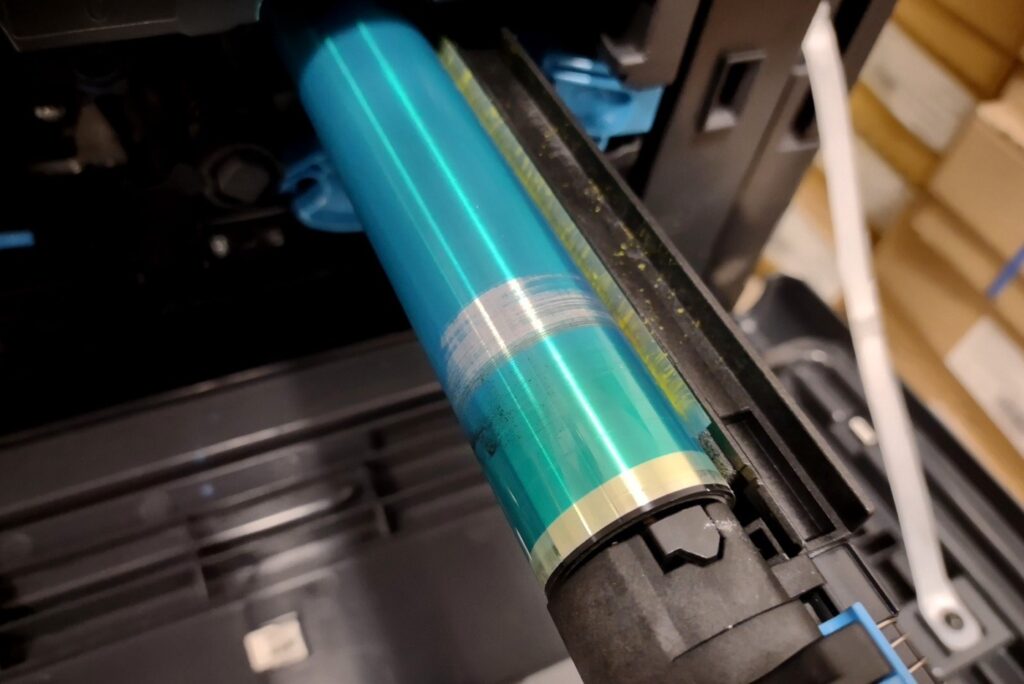
If one side or one band of the page is light, take the toner cartridge out, rock it gently from side to side and put it back. If the faint area stays in the same place, the drum or the cartridge is the likely cause. Streaks and spots have their own guide: why your laser printer prints streaks or lines.
Inkjet printers: faded or missing colors
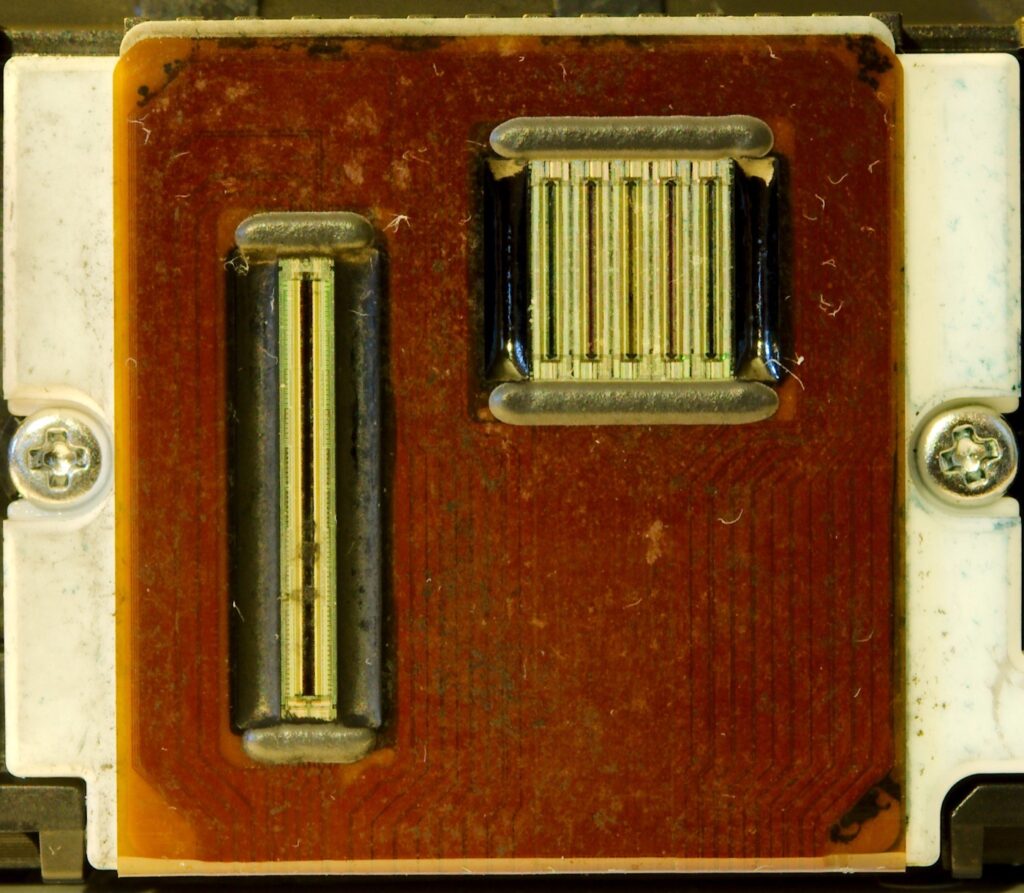
- Run a nozzle check first. Only run a cleaning cycle if the test shows broken lines, because cleaning uses ink.
- Epson, for example, suggests repeating the cleaning up to three times, then leaving the printer unused for at least 12 hours before trying again.
- Print at least a page every week or two. HP notes that ink left sitting dries in the printhead and clogs it.
Questions we get
Why is my printer printing light when it has toner?
Usually toner save mode is on, the paper type setting doesn’t match the paper, or the print density is set low. If none of those is the cause, the drum may be worn.
How do I turn off toner save on a Brother printer?
Switch Toner Save off in the printer’s menu, or untick it in the printer driver on your computer. The exact menu depends on the model.
Does a new toner cartridge fix faded printing?
If the old cartridge was running low, yes. On printers where the drum is built into the cartridge, a new one also replaces a worn drum.
Find the right supplies for your printer