Short answer
Press the front door release button and open the door, pull out the old cartridge, take the new one out of its packaging, rock it five or six times while holding both ends, then slide it along the tracks until it sits firmly and close the door. On most HP LaserJets, that is the whole job.
HP LaserJet printers make toner changes simple, because on most models the drum is built into the cartridge. One part comes out, one part goes in. Here is how to do it on the LaserJet Pro M404 and MFP M428, which take the HP 58A and 58X, and what changes on models with a separate drum.
How to replace the toner on an HP LaserJet Pro M404 or MFP M428
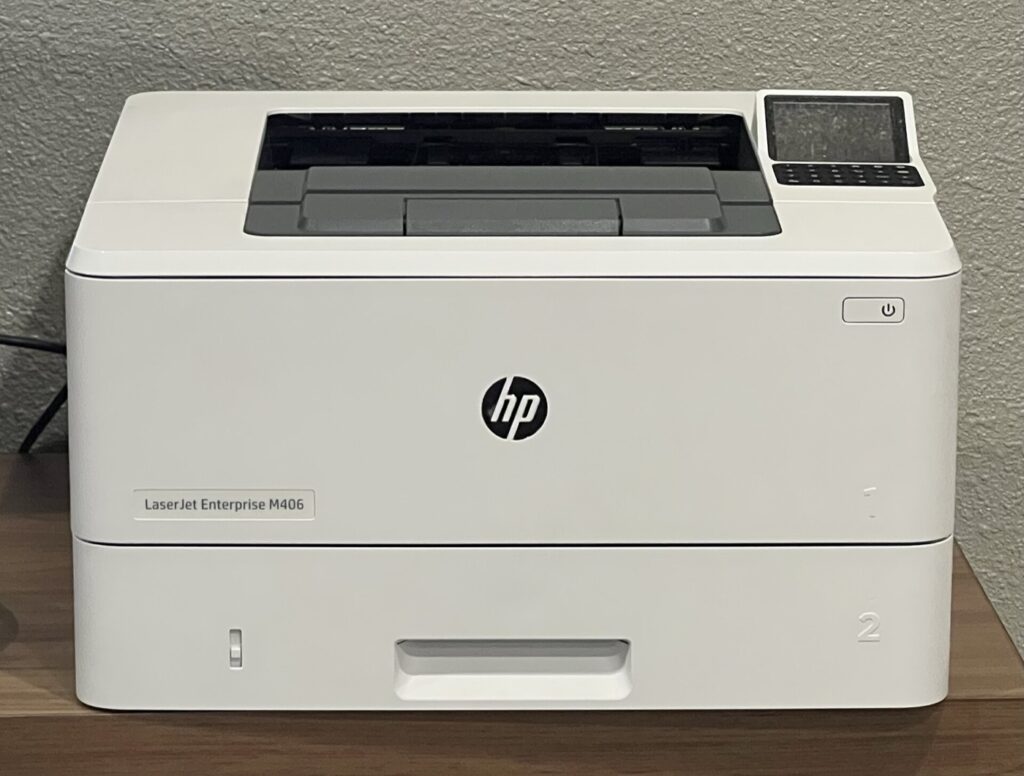
- Press the front door release button and open the front door.
- Pull out the used toner cartridge.
- Take the new cartridge package out of the box and pull the release tab on the packaging.
- Lift the cartridge out of its packaging shell. Keep the shell; the old cartridge fits in it.
- Hold the new cartridge by both ends and rock it five or six times.
- Line the cartridge up with the tracks inside the printer and push it in until it sits firmly.
- Close the front door.
Two things HP says not to do
- Don’t touch the imaging drum. It is the roller on the cartridge. Fingerprints and scratches on it show up on your prints.
- Don’t leave the cartridge out in the light. HP advises not to expose it to light for more than a few minutes, so have the new one ready before you take the old one out.
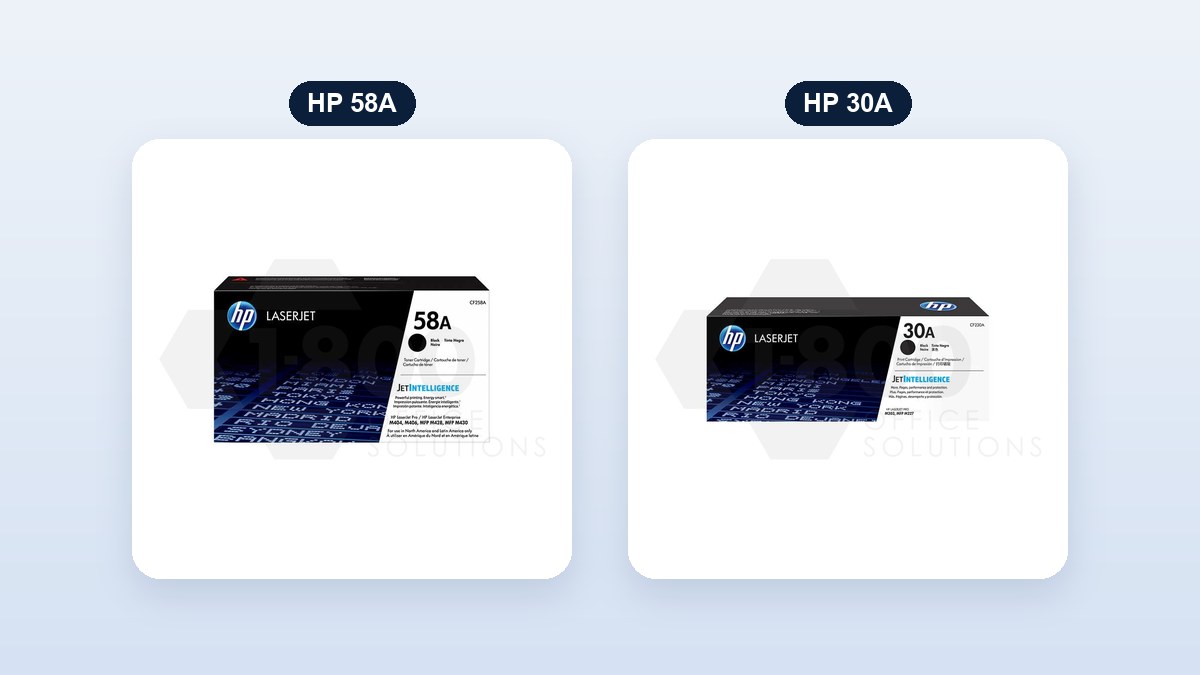
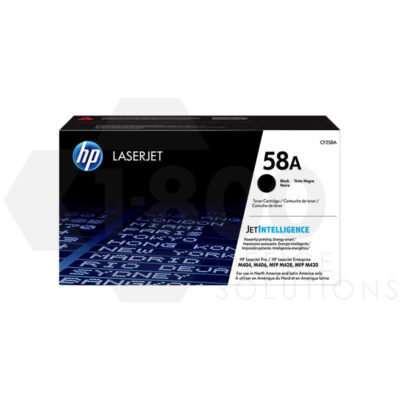
HP 58A and HP 30A toner, genuine and compatible
-
HP 58A Black Toner Cartridge
$149.99 -
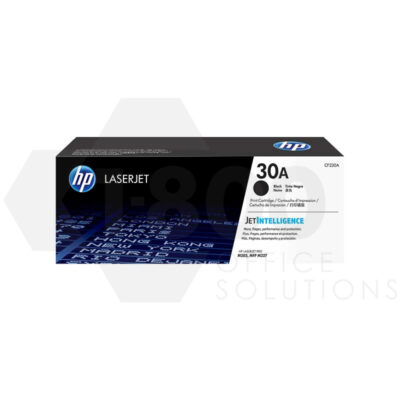
HP 30A Black Toner Cartridge
$97.99
HP LaserJets with a separate imaging drum
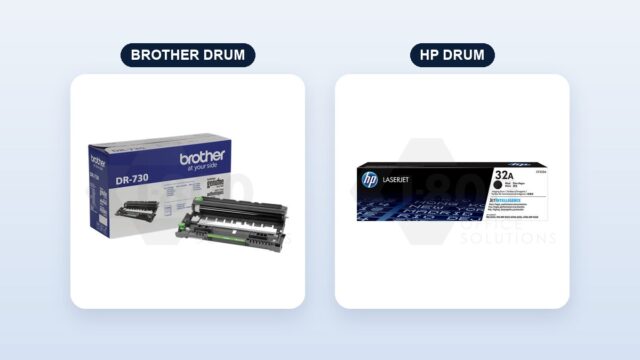
A few HP models split the toner and the drum. The HP LaserJet Pro M203 and MFP M227, for example, use the HP 30A or 30X toner with a separate HP 32A imaging drum. On those printers you change the toner far more often than the drum, so only replace the drum when the printer asks for it. Our guide on drum vs toner explains the difference.
Buy cartridges for your region
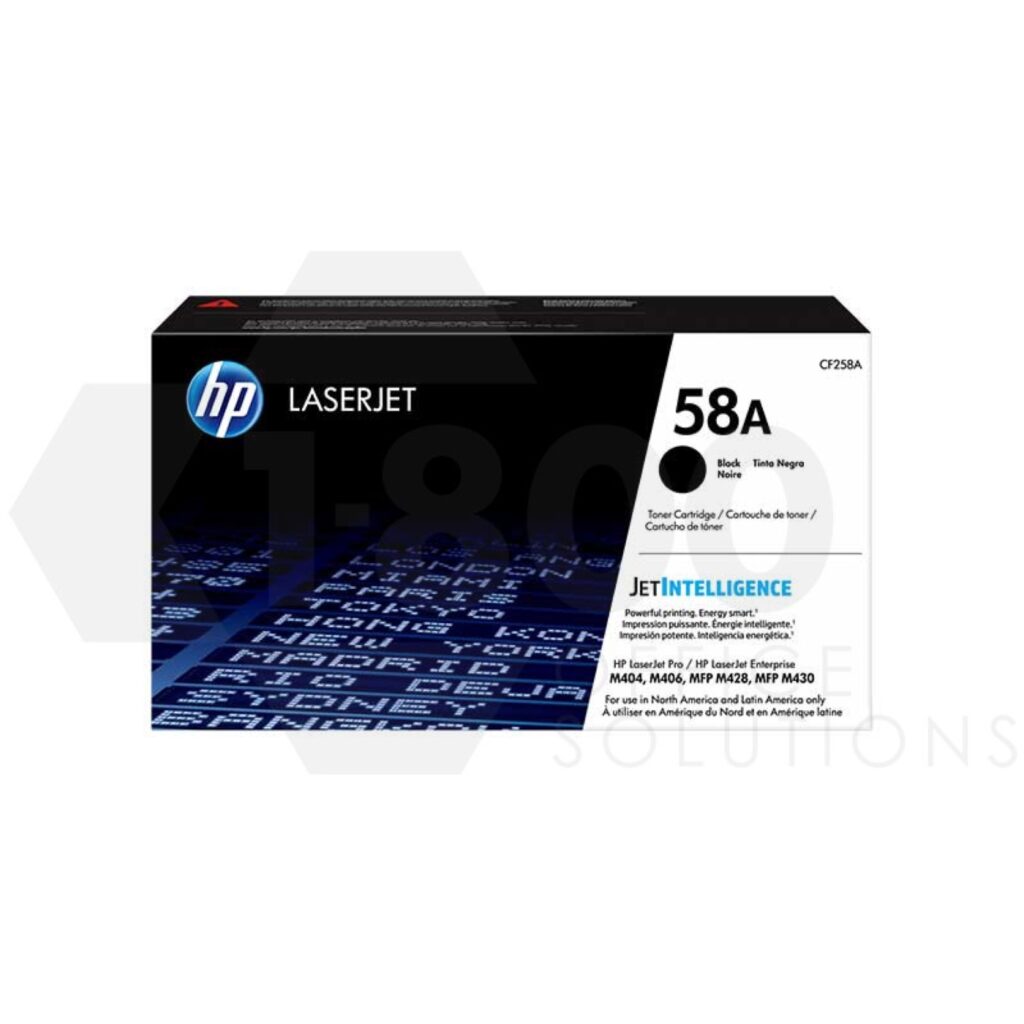
HP cartridges are made for a specific region and won’t work outside it. The HP 58A and 58X are marked for use in North America and Latin America, while other regions get different numbers, such as the 59A in Europe and the 76A in Asia Pacific. Buy the number that matches your printer and your country.
If the printer doesn’t accept the new cartridge
Take it out and check that all packing material and any sealing tape are gone and that the small memory chip on the cartridge isn’t damaged. Then push it back in firmly and close the door. If the message stays, read our guide to a toner cartridge not recognized.
Questions we get
Do I need to shake an HP toner cartridge?
For the LaserJet Pro M404 and MFP M428, HP says to hold the cartridge by both ends and rock it five or six times before you put it in.
Does the HP 58A have a drum?
Yes. The imaging drum is built into the HP 58A and 58X, so every new cartridge brings a new drum with it.
How many pages does the HP 58A print?
The HP 58A is rated for about 3,000 pages and the high yield 58X for about 10,000. Here is how to choose between the 58A and 58X.
Find the right supplies for your printer