Short answer
Look at the front or top of the printer, near the control panel. That is where most brands print the model, for example HP LaserJet Pro M404dn or Brother HL-L2350DW. If it is not there, check the label on the back, or use the part number printed on your old cartridge.
Ordering the wrong toner usually means a return and a few days with a printer that won’t print. Finding your printer model number first takes less than a minute and avoids all of that.
Where to find the printer model number
Start with the printer itself and check these spots in order:
- The front panel or the top cover. Most printers show the model name near the screen or the buttons.
- The label on the back or underneath. It lists the model and the serial number. You only need the model.
- Inside the front door. Some printers repeat the model where you swap the cartridge.
Write down every letter and number, including the ending such as dn, dw or fdw. Inside a series, that ending usually adds a feature like wireless or fax and doesn’t change the cartridge. The HP LaserJet M404n, M404dn and M404dw all take the HP 58A, for example. Still, search the full model so you don’t have to guess.
HP, Brother, Canon and other brands
| Brand | Where to look first | What a model looks like |
|---|---|---|
| HP | Front panel or top cover | LaserJet Pro M404dn |
| Brother | Top cover, above the control panel | HL-L2350DW, MFC-L2750DW |
| Canon | Front or top cover | imageCLASS MF445dw |
| Lexmark, Xerox, Kyocera, Epson | Front panel, then the back label | Lexmark MS431dn |
Many printers can also print a configuration or settings report from the menu on the control panel. That page shows the model, and on a lot of printers it shows the cartridge too.
Check the model from your computer
If the printer sits in another room, your computer probably already knows the model:
- Windows 11: open Settings, then Bluetooth & devices, then Printers & scanners.
- Windows 10: open Settings, then Devices, then Printers & scanners.
- Mac: open System Settings (System Preferences on older Macs), then Printers & Scanners.
One catch. If somebody renamed the printer to something like Front Office Printer, the name won’t help you, so go back to the label.
The shortcut: the number on your old cartridge
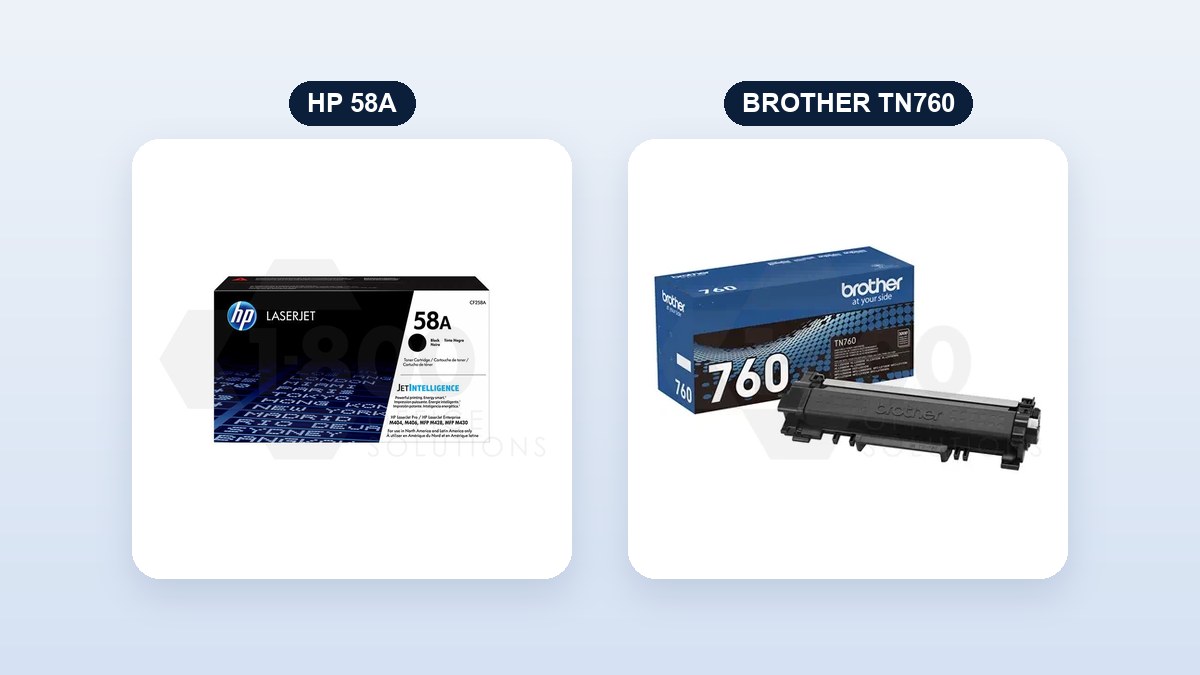
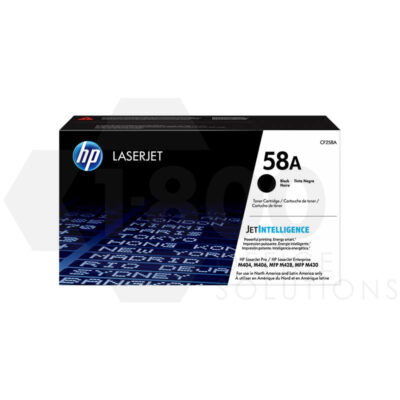
Every cartridge has a part number on its label, and usually on the box as well. HP prints a short name and a part number, such as 58A and CF258A. Brother prints one number, such as TN760. Either one leads straight to the right replacement.
Example: HP 58A (CF258A), genuine and compatible
-
HP 58A Black Toner Cartridge
$164.67
Search by model or cartridge number
Type what you found into the box below. Each product page lists the printers it fits, and you will see the genuine cartridge next to its compatible options. Not sure which one to pick? Our guide on compatible vs genuine toner covers the differences.
Find the right supplies for your printer
Color printers and multifunction printers
A color laser printer takes four cartridges: black, cyan, magenta and yellow. Search the model once and all four come up. A multifunction printer that prints, scans, copies and faxes uses one set of cartridges for all of it, so the model on the front is still the only thing you need.
Questions we get
Is the model number the same as the serial number?
No. The serial number identifies your one machine and is usually a long run of letters and digits. The model number names the product, like HL-L2350DW, and cartridges are matched to the model.
Do printers in the same series take the same cartridge?
Often, but not always. The HP LaserJet M404n, M404dn and M404dw share the HP 58A, yet two printers whose names start the same way can still take different cartridges. Search your full model to be sure.
The label is worn off. What now?
Check the printer from your computer as shown above, print a configuration page from the control panel, or use the part number on the old cartridge.
Still not sure?
Email a photo of the printer label or the old cartridge to shop@1800toners.com and we will tell you which cartridge fits.